Budget spreadsheetExcel and Google SheetsFor the year 2027

2027 Budget Spreadsheet.

Type what you spend in one plain table. The dashboard, the monthly plan, the charts and the Data check update on their own. Debt payoff shows snowball and avalanche side by side, with real interest, and tells you the month you are debt free.

What you get

Two Excel files and a guide: a blank file ready for your numbers, the same file with an example household filled in from January to September so you can see every sheet with real numbers first, and a 3 page quick start guide (PDF). Open them in Microsoft Excel 2016 or newer, or in Google Sheets. Nothing is shipped.
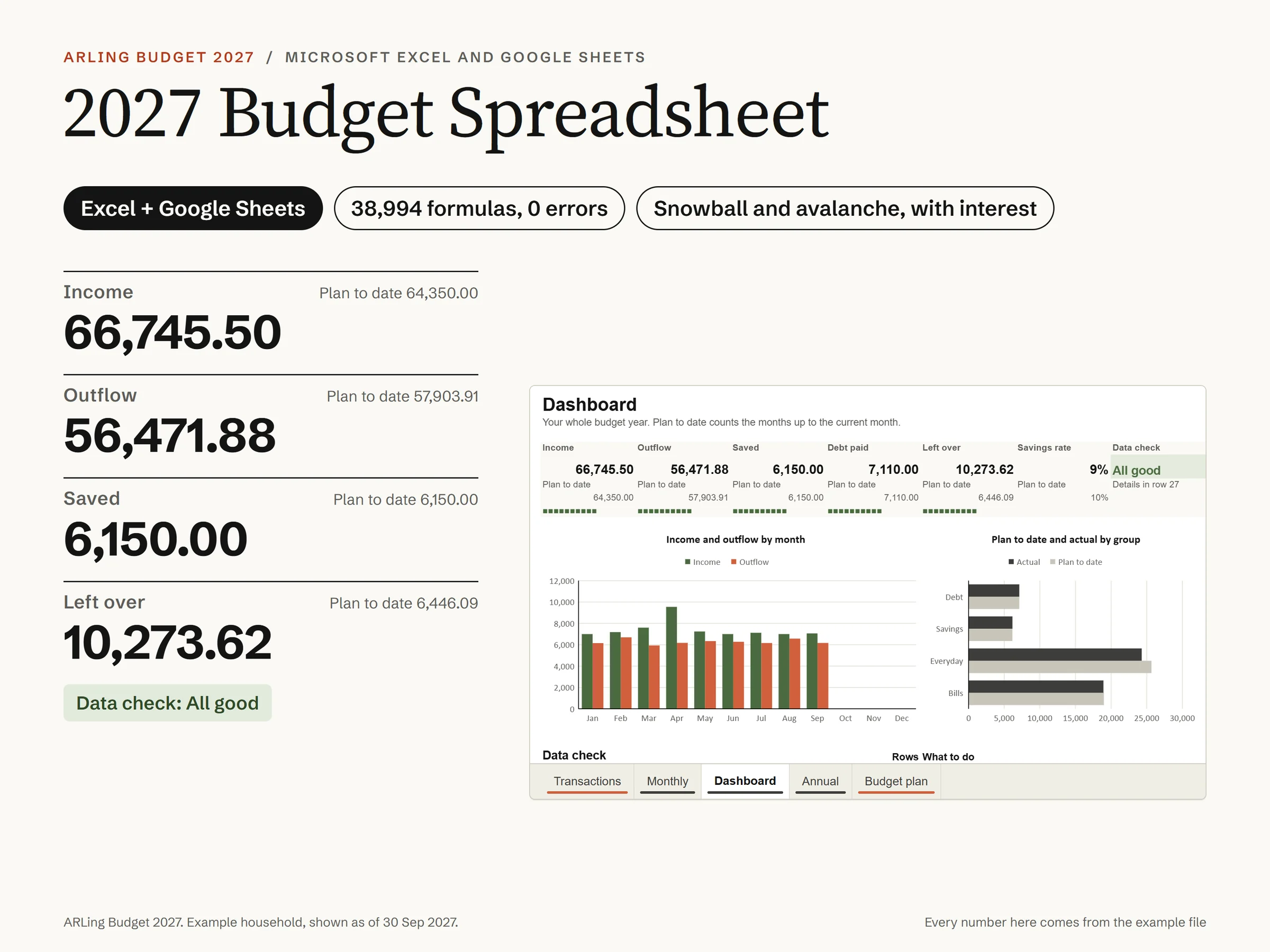
The Dashboard of the example household: income 66,745.50, outflow 56,471.88, saved 6,150.00, left over 10,273.62, Data check All good, and charts of income and outflow by month
The real Dashboard, drawn from the example file.
9.90 €one payment, VAT included

VAT included, nothing added at checkout. You buy the files once and keep them; next year change the year in Settings and start again.

See every sheet first

The files unlock right after payment. You can still withdraw within 14 days without giving a reason (our terms, section 5). Terms

  • download buttons appear on this page right after payment, and the links come by e-mail too
  • Excel and Google Sheets, both in the price
  • no account to make, no bank to connect

How it works.

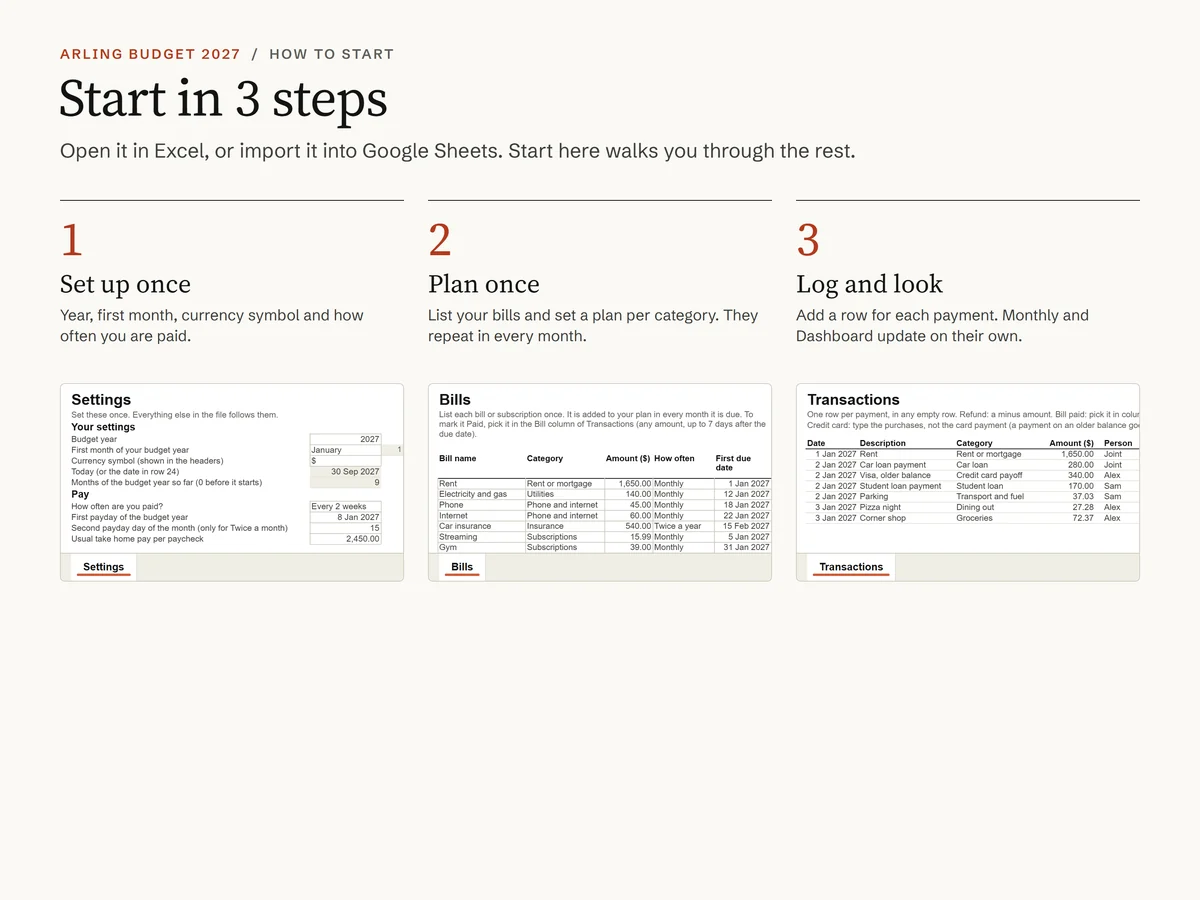
Set it up once, then only type your payments. Everything else follows.

  1. Settings, once. Your year, the first month, your currency symbol, how often you are paid and up to 4 people.
  2. Plan and bills, once. Your categories and how much you plan for each, and your bills and subscriptions, which repeat on their own.
  3. Type what you spend. One row per payment in Transactions, the category from a drop down list. A refund is a minus amount.
  4. Read the result. The Dashboard, Monthly, Annual and the charts update on their own, and the Data check says All good or tells you what to fix.
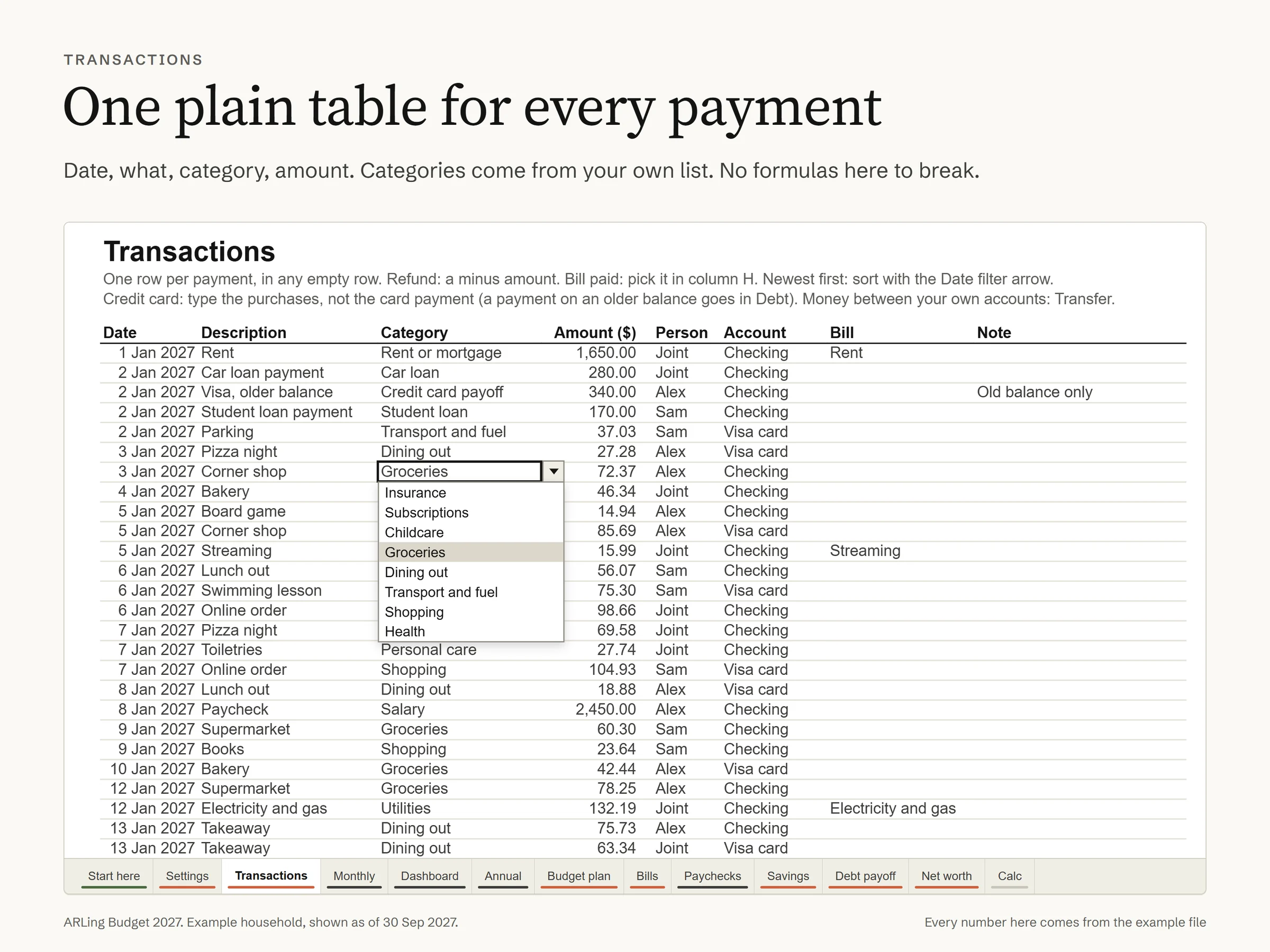
Transactions with the category list open on the Groceries row: date, description, category, amount, person and account
One plain table. The category comes from your own list.
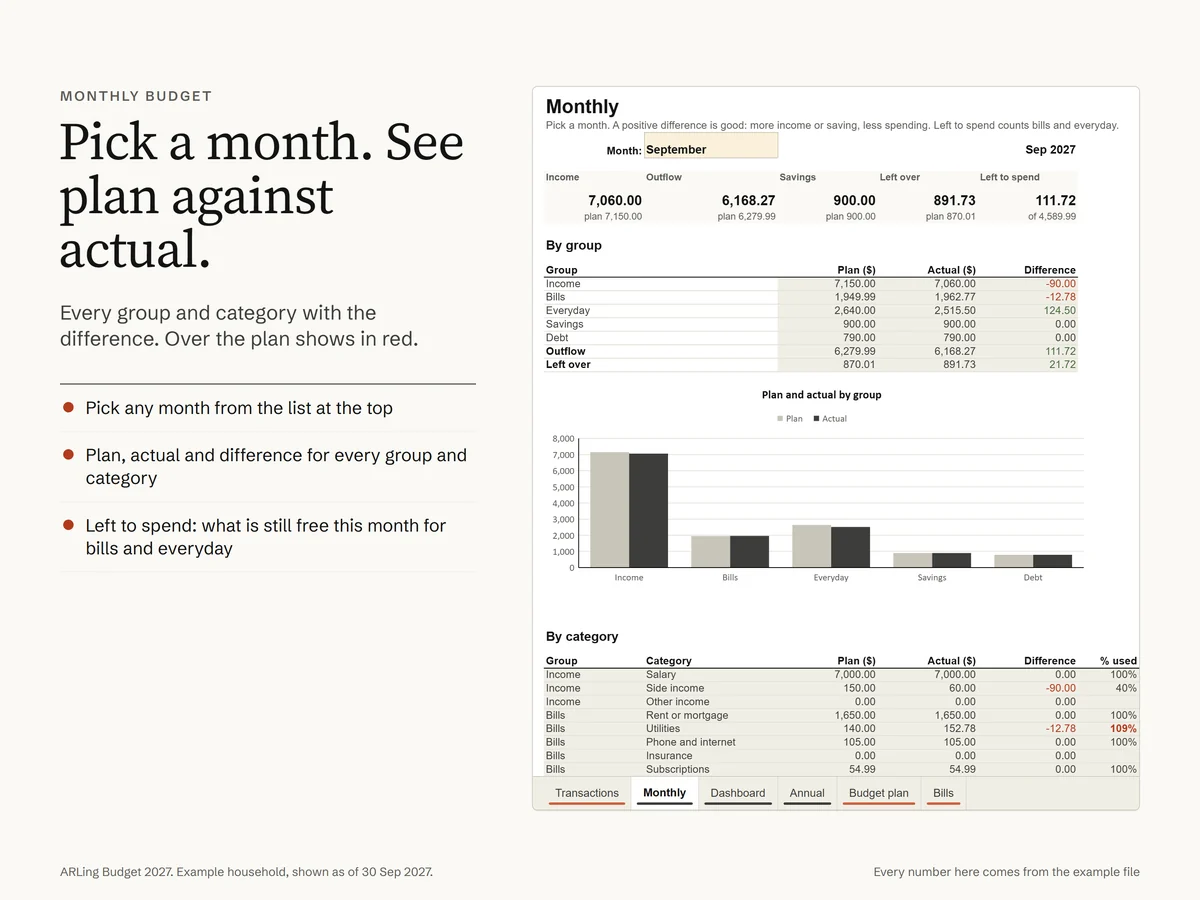
The Monthly sheet for September: plan, actual and difference for every group and category, with a chart
Pick a month. Plan against actual, over the plan in red.

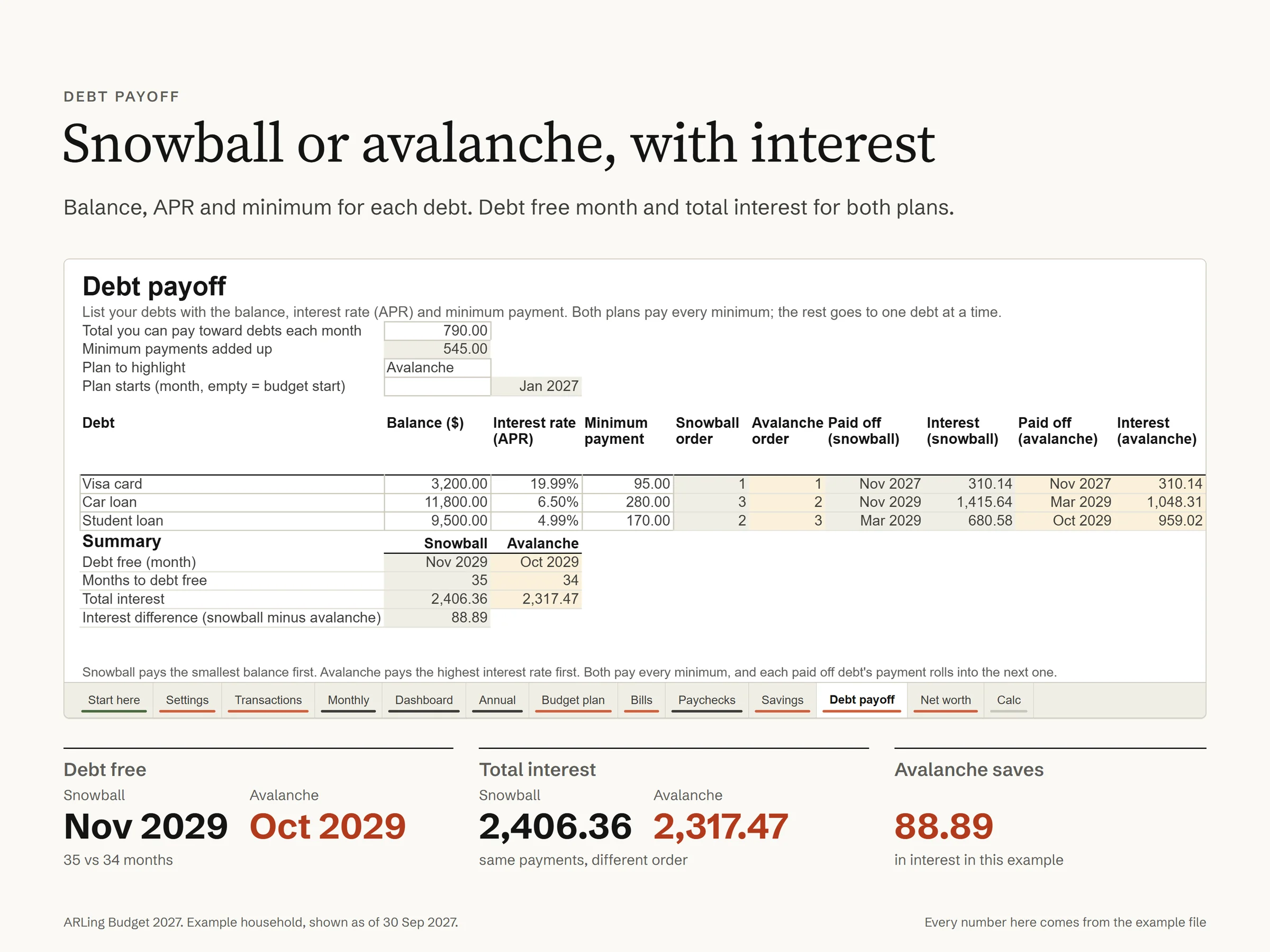
Snowball or avalanche, with interest.

Up to 10 debts with their interest rate and minimum payment. Both plans pay every minimum and put the rest on one debt at a time; the sheet shows the month you are debt free and the total interest for each plan.

Debt payoff for the example household: a Visa card, a car loan and a student loan; debt free in November 2029 with snowball and October 2029 with avalanche, total interest 2,406.36 against 2,317.47, avalanche saves 88.89
In the example, avalanche is debt free one month sooner and saves 88.89 in interest. Your numbers will differ.

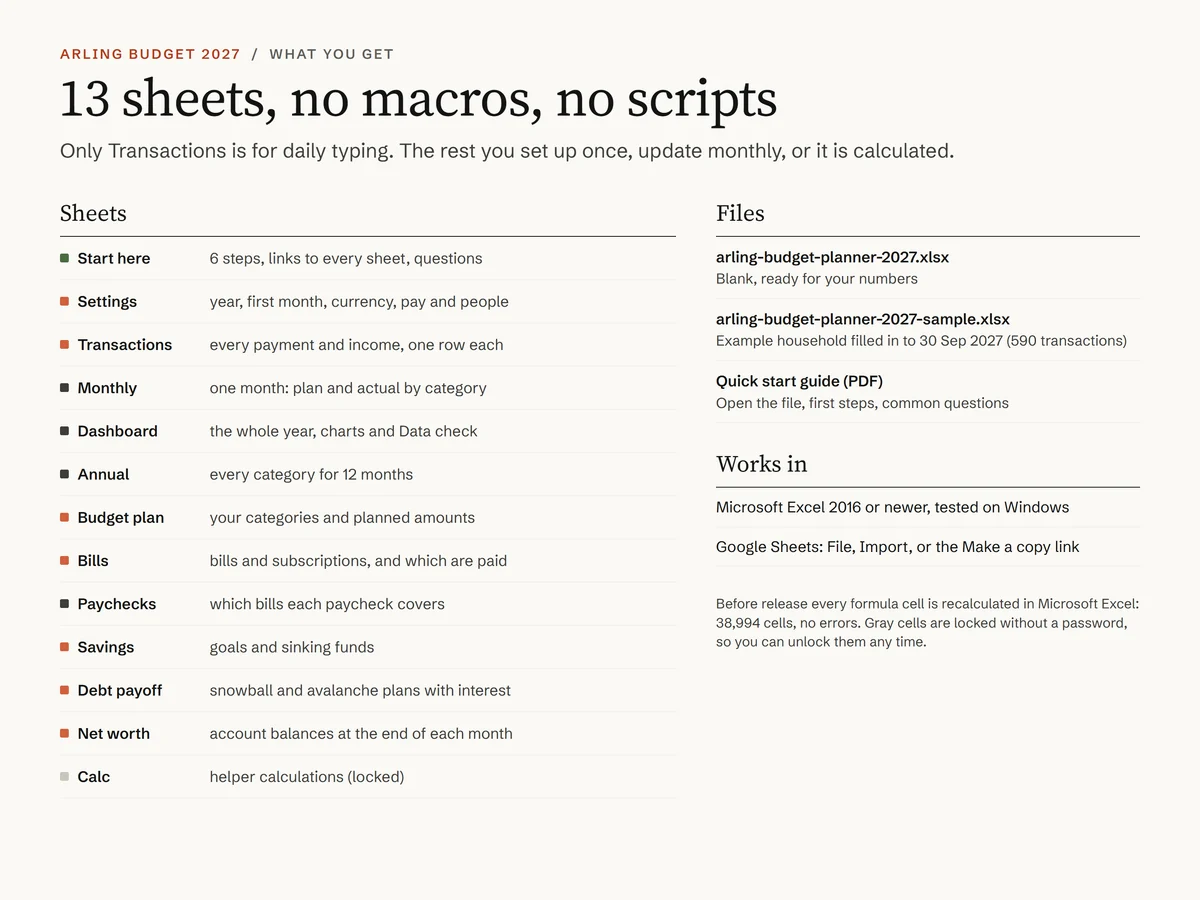
Thirteen sheets.

Only Transactions is for daily typing. The rest you set up once, update monthly, or it is calculated.

  1. 1. Start here6 steps, a link to every sheet, answers to common questions
  2. 2. Settingsyear, first month, currency symbol, how often you are paid, up to 4 people
  3. 3. Transactionsone plain table, one row per payment, category from a drop down list
  4. 4. Monthlypick a month, see plan against actual for every group and category
  5. 5. Dashboardincome, outflow, saved, debt paid, left over, savings rate, 4 charts, top 5 spending
  6. 6. Annualevery category for 12 months, with the year plan and the difference
  7. 7. Budget planyour categories (up to 60) and how much you plan for each
  8. 8. Billstyped once, added to every month they are due, marked Paid, Due or Late
  9. 9. Paychecksevery payday of the year and the bills due before the next one
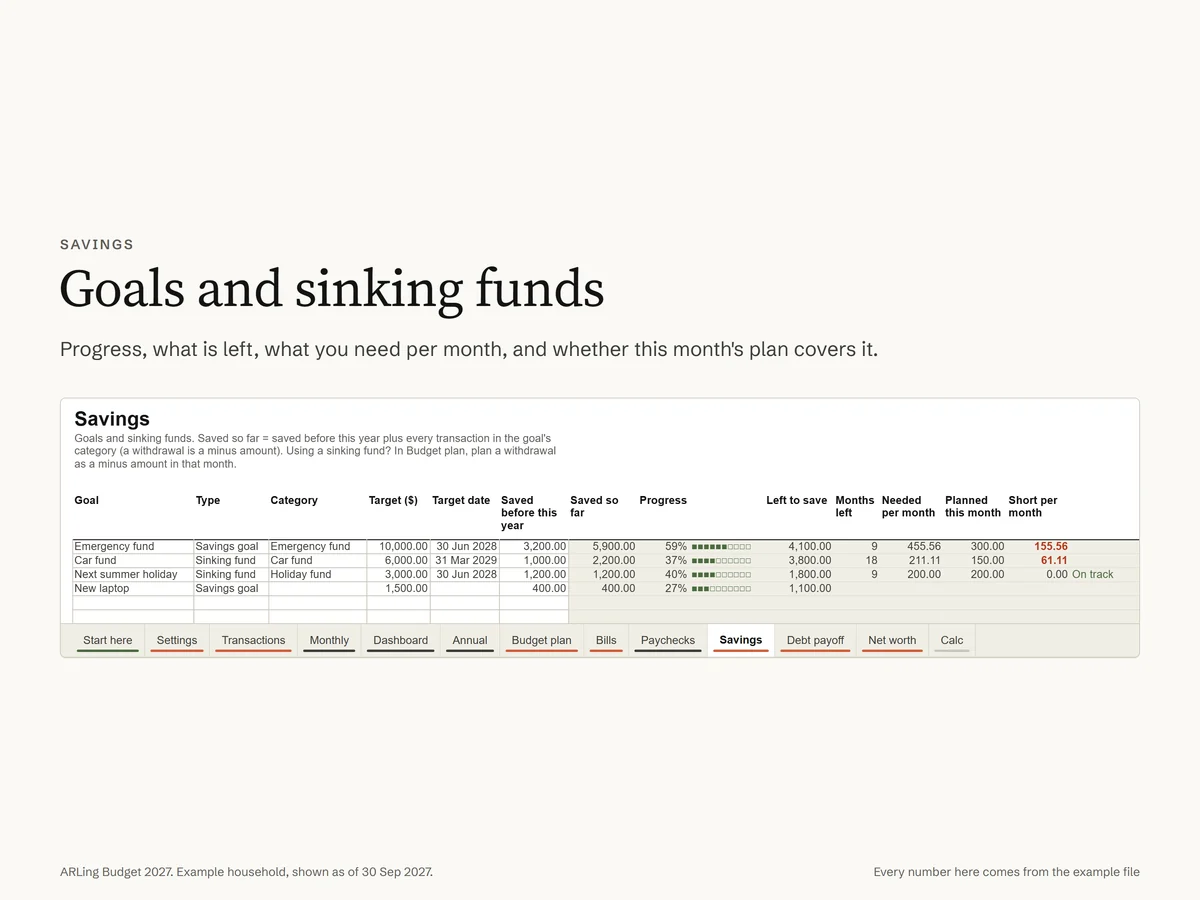
  10. 10. Savingsgoals and sinking funds with progress and how much you need per month
  11. 11. Debt payoffup to 10 debts with APR, snowball and avalanche side by side
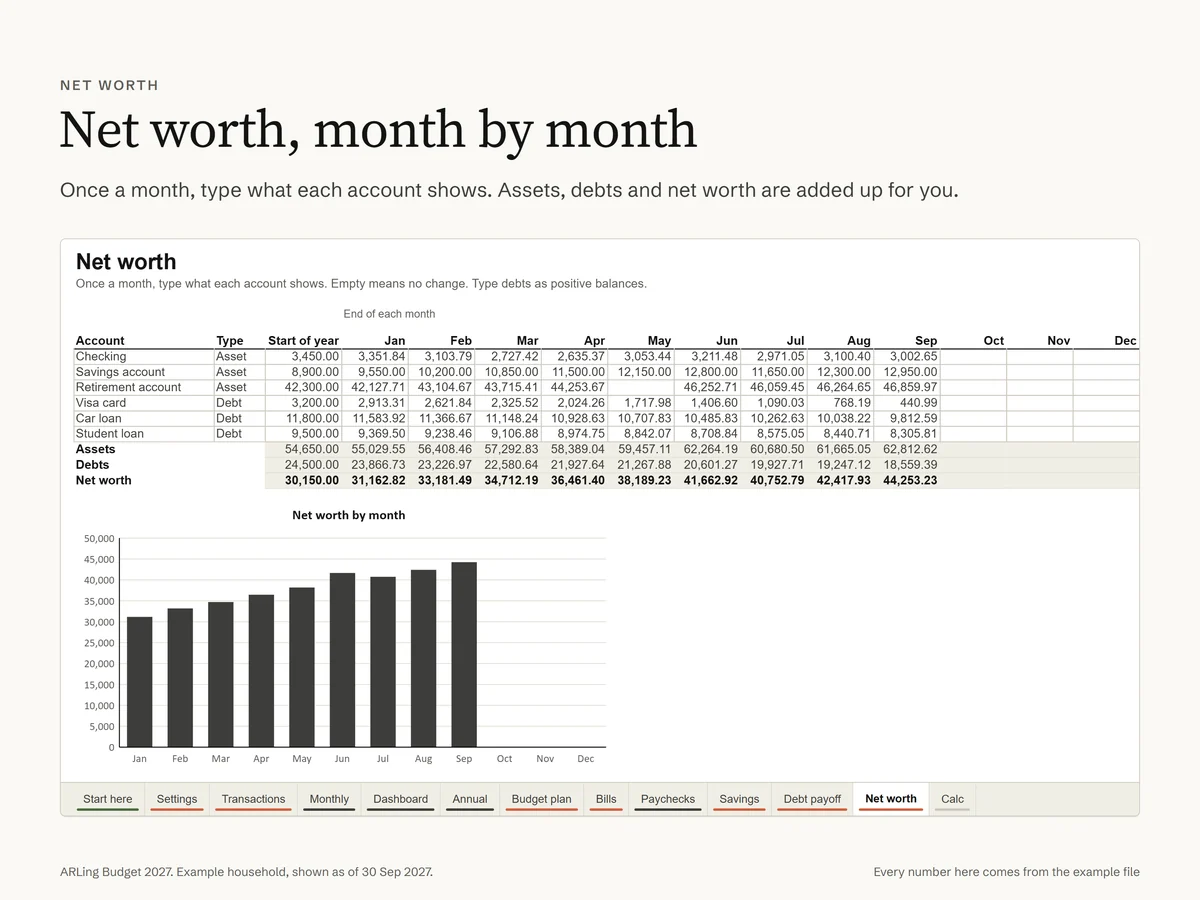
  12. 12. Net worthaccount balances at the end of each month, with a chart
  13. 13. Calcthe helper calculations, visible and locked, so every number can be traced
The Savings sheet: goals and sinking funds with progress, what is left and what is needed per month
Savings. Goals and sinking funds.
The Net worth sheet: assets and debts at the end of each month with a chart of net worth
Net worth. Month by month.
What you get: 13 sheets, the two files and the guide, and where it works
What you get. Files and sheets.

Three files.

FileWhat it isSize
arling-budget-planner-2027.xlsxBlank, ready for your numbers0.36 MB
arling-budget-planner-2027-sample.xlsxAn example household filled in from January to September0.40 MB
Quick start guide (PDF)Opening the file in Excel or Google Sheets, the first steps, common questions0.24 MB

Made for a computer screen. Microsoft Excel 2016 or newer (tested on Windows) and Google Sheets. We have not tested Excel for Mac, Excel for the web, phone and tablet apps or Apple Numbers yet. Text and labels are in English; any currency symbol works.

Start in 3 steps: Settings, Bills and Transactions, as real cut outs of the sheets
Start in three steps. From the quick start guide.

Before you buy.

Does it work in Google Sheets?

Yes. Import the file (File, Import, Upload) or use the Make a copy link in the quick start guide. We imported it into Google Sheets and compared every calculated number with Excel: 34,720 number cells matched. We have not tested Excel for Mac, Excel for the web, phone and tablet apps or Apple Numbers yet.

Do I have to connect my bank?

No. Nothing is connected. You type each payment in Transactions, or paste rows from your bank's export into its columns. The file never leaves your computer or your Google account.

What happens after I pay?

Stripe sends you back to this page, the page checks that the payment went through, and download buttons for the two Excel files and the guide appear in place of the buy button. The same links are sent by e-mail to the address you paid with. The links on the page work for 7 days and the ones in the e-mail for 30 days.

Can I get my money back?

As a consumer you can withdraw within 14 days without giving a reason (our terms, section 5), and we refund you within 14 days. If a file is broken or does not do what this page says, write to support@arling.sk and we fix it or send the money back.

Can I use it next year?

Yes. Change the year in Settings and clear Transactions; the guide lists every step. Any first month works too, so the year can start in July if yours does.

Is it financial advice?

No. The file is a tool for your own records. It adds up what you type and shows the result; decisions stay yours.

Do I get a receipt?

Yes. Stripe handles the sale through Managed Payments as the merchant of record, and ARLing supplies the files. At checkout you will see “Sold through Link”, your bank statement will show LINK.COM* ARLING, and Link sends you the receipt.

Colophon

Publisher
ARLing s. r. o., Ivanská cesta 32E, 821 04 Bratislava, Slovakia. Company ID 56583486, VAT ID SK2122352100.
Who makes it
Andrej in Bratislava looks after the products and the support and answers at support@arling.sk. The spreadsheet is built and checked by our own programs, with the help of AI tools; every release is recalculated in Microsoft Excel before it goes out.
Payment and delivery
Stripe handles the sale through Managed Payments as the merchant of record, and ARLing supplies the files. Your download links appear on this page as soon as Stripe confirms the payment, and the same links are sent by e-mail to the address you paid with. There is no account to make.

How we workAsk a question